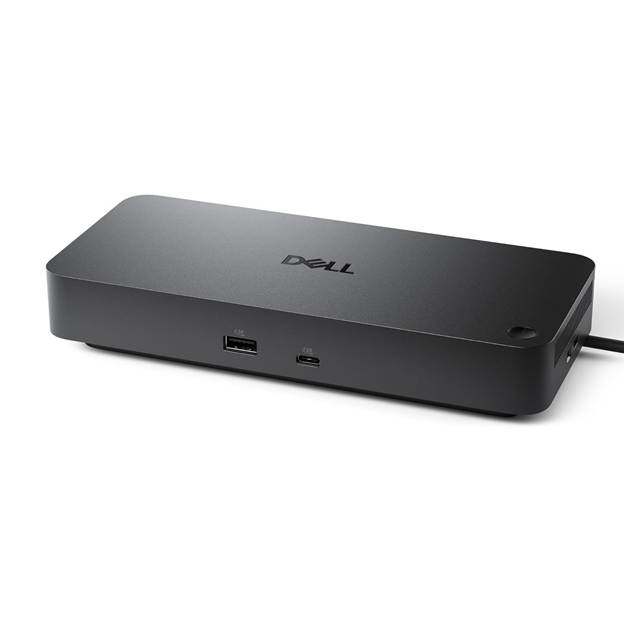
Choosing between USB-C hubs vs Thunderbolt 4 docks can be confusing, especially since both look similar and are often marketed the same way. While they share a connector, their real-world capabilities are very different — and choosing the wrong one can limit monitors, performance, and productivity.
Trying to run multiple external monitors from a laptop sounds simple — until you buy a dock that doesn’t work the way it claims.
USB-C Hubs vs Thunderbolt 4 Docks: The Real Differences
Many USB-C hubs advertise “dual display” support but only mirror screens instead of extending them, especially on MacBooks. Others lack enough power delivery, causing laptops to slowly drain while connected.
After reviewing specs, real-world limitations, and common buyer complaints, this guide breaks down what actually works — and which type of dock you really need for dual or triple monitor setups.
Quick Answer
If you want:
- Two external monitors → A quality USB-C dock may be enough
- Three external monitors → You almost always need a Thunderbolt dock
Cheap hubs often fail because they:
- Don’t support DisplayPort Alt Mode properly
- Mirror displays instead of extending them
- Lack sufficient bandwidth or power delivery
⚠️ Always confirm your laptop supports Thunderbolt or DisplayPort Alt Mode before purchasing.
Best USB-C Dock for Dual Monitors (Best Value Pick)
Dell Pro Dock WD25 (USB-C, Up to 100W Power Delivery)
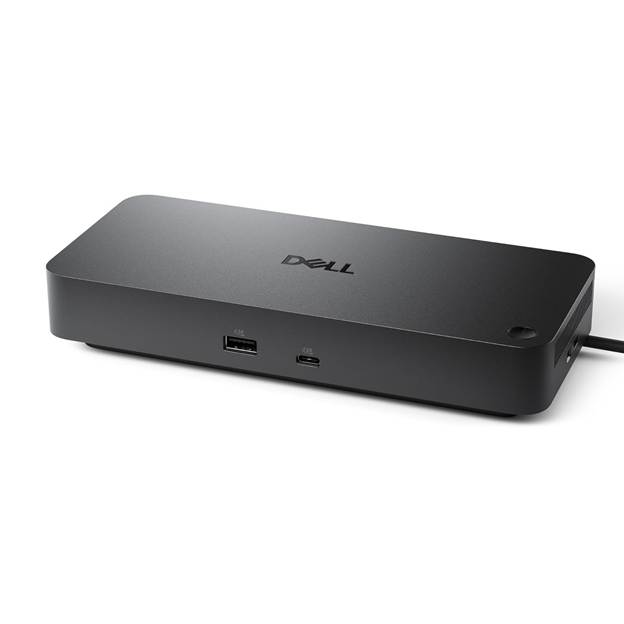
If you want a reliable, professional-grade dock without jumping to Thunderbolt pricing, the Dell Pro Dock WD25 is one of the strongest USB-C options available.
Why it works
- Supports dual external displays via DisplayPort/HDMI
- Delivers up to 100W power, enough for most laptops
- Excellent build quality and stability
- Designed for business and work-from-home setups
Pros
- Strong dual-monitor support
- Plenty of USB-A and USB-C ports
- Reliable Ethernet connection
- Clean, professional design
Cons
- Not ideal for triple-monitor setups
- Thunderbolt offers more bandwidth (at a higher cost)
Best for:
Professionals and home office users who need two external monitors with dependable power delivery.
Check price & specs for Dell Pro Dock WD25
Best Thunderbolt Dock for Dual Monitors (Higher Performance Option)
DELL Pro Thunderbolt 4 Dock (Professional Upgrade Pick)
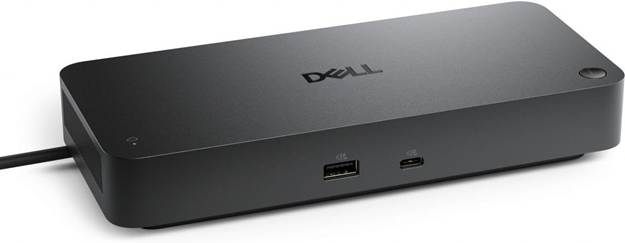
If your laptop supports Thunderbolt, upgrading from USB-C unlocks:
- More bandwidth
- Better stability
- Support for higher-resolution displays
Thunderbolt docks are ideal for:
- MacBooks
- Developers
- Designers
- Power users who want zero compromises
Pros
- Faster data transfer
- More reliable multi-monitor support
- Better compatibility with modern laptops
Cons
- More expensive than USB-C docks
- Requires a Thunderbolt-enabled laptop
View recommended Thunderbolt 4 dock
Best Thunderbolt Dock for Triple Monitor Setups (Power Users)
Plugable Thunderbolt 4 Quad Display Dock
If you need three external monitors, USB-C hubs almost always fall short.
Thunderbolt docks are the only consistently reliable solution for:
- Trading desks
- Engineering workstations
- Content creation
- Productivity power users
What to look for
- Thunderbolt 4 or USB4 support
- Multiple DisplayPort or HDMI outputs
- 90W–100W power delivery
- Strong cooling and thermal design
Pros
- True triple-monitor support
- Handles high-resolution displays
- Future-proof setup
Cons
- Premium price
- Overkill for simple setups
Check the best Thunderbolt docks for 3 monitors
USB-C vs Thunderbolt — What You Actually Need
| Feature | USB-C Dock | Thunderbolt Dock |
| Dual monitors | ✅ Sometimes | ✅ Always |
| Triple monitors | ❌ Rare | ✅ Yes |
| Bandwidth | Limited | Very high |
| Best for | Offices, budget setups | Power users |
| Price range | $120–$250 | $300–$600 |
Rule of thumb:
If your setup feels “borderline,” Thunderbolt saves you from buying twice.
Compare USB-C vs Thunderbolt dock prices
Common Questions
Will these work with MacBooks?
Yes — but MacBooks have stricter limitations. Thunderbolt docks are usually the safest choice for macOS.
Why do some docks mirror displays?
They lack proper DisplayPort or DisplayLink support and don’t have enough bandwidth.
Do I need Thunderbolt for two monitors?
Not always — but it improves reliability, especially at higher resolutions.
Final Recommendation
If you want:
- Best value for dual monitors → Dell Pro Dock WD25
- Maximum reliability → Thunderbolt dock
- Three external monitors → Thunderbolt is mandatory
Spending a bit more upfront often prevents weeks of frustration and returns.
See today’s best prices for the recommended docks on Amazon
Affiliate Disclosure
Some links on this site may be affiliate links. If you make a purchase through these links, PrimePeripheral.com may earn a commission at no additional cost to you. This helps support continued testing, research, and content creation.